Top 10 MINJCODE Thermal Receipt Printers for Businesses

Choosing a receipt printer is a practical decision. It affects checkout speed, counter space, and the clarity of every printed receipt. MINJCODE thermal receipt printers are designed for business environments where dependable printing matters, from busy retail counters to cafés handling a steady queue. Thermal printing uses heat-sensitive paper, so businesses should also consider paper width, roll replacement, and storage conditions.

A useful comparison looks beyond headline speed. Check each model’s supported interfaces, operating-system and POS compatibility, print width, cutter options, and installation requirements. These details can determine whether a printer fits an existing checkout setup or needs extra configuration. Look closely at the product specifications. Features and availability may differ by model, so confirm them with the seller before purchasing.

The top 10 picks in this guide are intended to help businesses compare options against real daily needs. A compact printer may suit a small counter, while a high-volume location may value faster output and convenient paper loading. There is no single best choice for every shop. That sounds simple. It isn’t always. A feature-rich device can be a poor fit if its connections do not match your POS system. Consider support terms, consumable costs, and the time staff will spend maintaining the unit. These checks make the shortlist more useful and help set realistic expectations before you buy.
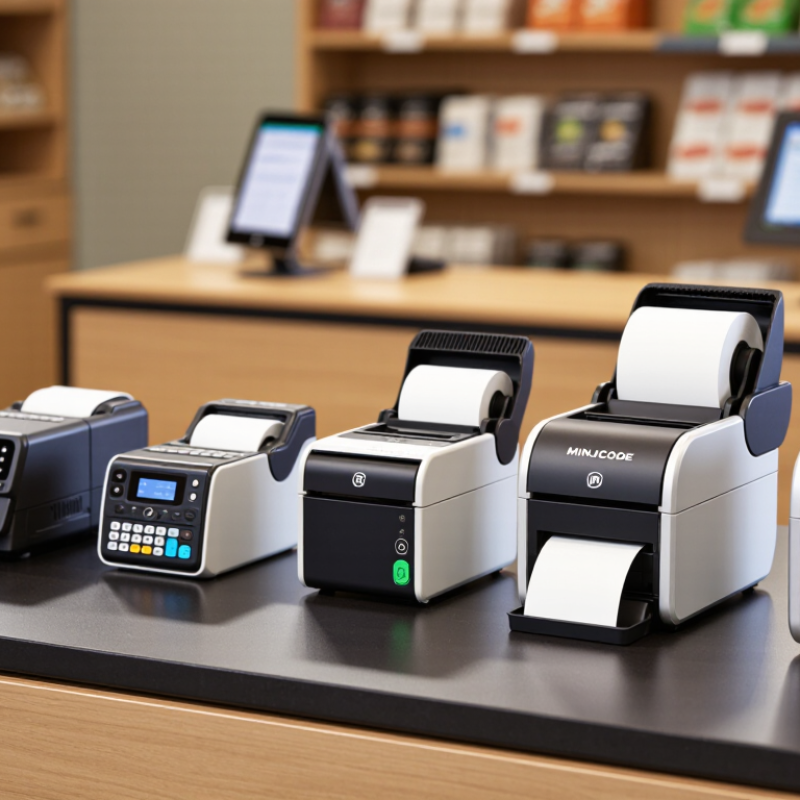
Top 10 MINJCODE Thermal Receipt Printers for Businesses

Thermal Receipt Printers and Their Role in Business

At a busy café, a thermal receipt printer turns a completed sale into a clear paper record within seconds. It uses heat-sensitive paper instead of ink or toner, reducing routine supply changes. That matters when staff are handling orders, payments, and customer questions at once. Speed helps. So does legibility. A faint receipt can create confusion when a customer needs to check an item or return later.

In daily operations, the printer must work smoothly with the point-of-sale system and fit the counter space available. A compact unit may suit a small shop, while a high-volume checkout needs a model built for frequent printing. Paper loading should be simple, too; a jam during a lunch rush can slow the whole line. Receipts can fade when exposed to heat or sunlight, so thermal printing is not ideal for every record-keeping need. It is a practical tool, not a complete archive.

The best choice depends on the business, not just the advertised print speed. Check connection options, paper availability, noise, and expected daily use before buying. One trade-off is easy to overlook: fast printing cannot fix confusing receipt layouts or poorly trained staff. A test run with real transaction details can reveal awkward spacing and hard-to-read text. Small details matter. And some choices still require reconsideration after the printer meets a real workday.

Key Features of MINJCODE Thermal Receipt Printers

Thermal receipt printers create text and simple graphics by heating coated paper, so they need no ink cartridges. That can simplify daily maintenance at a busy checkout. Look for clear print resolution and a speed suited to your queue; a small café may value quick order slips, while a shop may prioritize readable item details. Fast output helps. But speed alone is not enough.

Connectivity affects setup and workflow. USB can suit a fixed counter, while Ethernet may help printers shared across a network. Bluetooth or Wi-Fi can support mobile or flexible work areas, when the specific model and point-of-sale system are compatible. Check before buying. Paper width, roll loading, and cutter design also matter. A front-loading path can make roll changes easier during a rush, and an automatic cutter can reduce hand tearing. Yet cutters may need cleaning, and paper jams still happen. These details are easy to overlook.

For a practical comparison, confirm supported commands, operating-system compatibility, and available ports against your existing equipment. Consider the counter space, expected daily volume, and whether staff need status alerts for low paper or errors. Specifications vary by model, so verify them with the product documentation rather than assuming every unit includes the same features. A little setup friction is real.

Top 10 MINJCODE Thermal Receipt Printers for Businesses

A useful top-ten shortlist of thermal receipt printers should match the checkout environment, not just headline print speed. Grand View Research estimated the global point-of-sale terminal market at US$103.5 billion in 2023 and forecast 8.6% annual growth through 2030. This broader market trend highlights expanding checkout technology, but it does not prove that every business needs a faster printer. Fit matters.

Consider ten practical formats: compact USB, USB-and-Ethernet, Bluetooth mobile, Wi-Fi, high-speed countertop, kitchen-ready, dual-interface, automatic-cutter, wall-mounted, and kiosk printers. Each suits a different workflow. A mobile unit can print beside a delivery counter; an Ethernet model may serve several tills; a wall-mounted printer can free up a crowded prep station. Check paper width, roll capacity, cutter life, connection compatibility, and driver support before choosing.

This shortlist ranks use cases, not independently tested products. That distinction matters. A stated speed may not reflect busy-hour performance, especially when receipts include logos or dense text. I would test a sample during a real shift, checking connection stability and how easily staff reload paper. It takes a little effort, but it can reveal annoyances that a specification sheet misses.

Comparing Printer Specifications and Business Applications

A useful comparison of ten thermal receipt printers starts with paper width, print speed, and resolution. Compact 58 mm models suit mobile carts or small service counters, where receipts stay brief. Wider 80 mm units leave room for item details, return terms, and readable totals. Fast printing helps during lunch rushes, but speed figures alone can mislead. Check whether they reflect real-world use or ideal test conditions.

Look at connectivity alongside the printer’s daily role. USB can work well at a fixed checkout, while Ethernet supports shared counters and stable network setups. Bluetooth may suit handheld ordering, though pairing can add friction during staff changes. Small details matter: an auto-cutter reduces tearing, and a clear paper-out alert prevents awkward pauses. Quiet, but not magic.

Match the rated duty cycle to actual receipt volume. A low-volume studio may not need the same build as a busy grocery counter. Compare driver support, cash-drawer connections, paper loading, and replacement roll availability before choosing. Keep a sample receipt beside each specification sheet; tiny text can look fine on paper and still frustrate customers. I would treat any ranking as a starting point, not a verdict. Test the printer with your checkout software and a full shift’s workload.

Thermal Receipt Printer Formats by Business Application

58 mm and 80 mm are common thermal receipt paper widths. The application-to-width matches shown are practical examples, not fixed requirements; the right format depends on receipt content, counter space, and printer compatibility.

How to Choose and Maintain a MINJCODE Receipt Printer

Choosing a thermal receipt printer starts with the counter, not the catalogue. Measure available space and confirm whether your POS system needs 58 mm or 80 mm paper. Check the connection type, driver support, cutter, and expected daily print volume. A fast printer is not useful if its interface fails during a busy shift. Test a sample receipt with small text and barcodes before buying.

Receipt quality matters when customers need proof of purchase. The National Retail Federation’s 2024 report estimates that U.S. retail returns will total $890 billion, or 16.9% of annual sales. Clear, legible receipts can make return checks and transaction searches easier. Small details matter. Look for crisp edges, consistent darkness, and reliable paper feeding; faint printing can signal a dirty head, worn parts, or unsuitable paper.

For routine care, switch off the printer and let the print head cool before cleaning it. Use a lint-free swab and a cleaning method approved for the device. Remove paper dust from the path, and never scrape the head with a sharp tool. Keep paper rolls dry and stored away from heat. No checklist catches every jam. Log recurring errors and cleaning dates, then review them monthly. A checklist may feel excessive for a quiet till, but busy periods expose neglected maintenance quickly.

Top 10 Thermal Receipt Printer Types for Businesses — How to Choose and Maintain a Receipt Printer
No. Printer Type Suitable Use Paper Width Typical Print Speed Common Connectivity Key Selection Point Basic Maintenance
1 Compact 58 mm desktop Small counters, kiosks, and low-volume sales 58 mm About 90–150 mm/s USB; some configurations offer serial or wireless options Check that the narrower receipt width suits the required text and logo layout. Clean the printhead and paper path with suitable materials when needed; follow the device manual.
2 Standard 80 mm desktop Retail stores, cafés, and general point-of-sale counters 80 mm About 150–250 mm/s USB; Ethernet or serial may be available Confirm operating-system, POS software, and drawer-kick compatibility. Keep the paper compartment free of debris and inspect the cutter for scraps.
3 High-speed 80 mm counter printer Busy checkout lanes and quick-service restaurants 80 mm About 250–350 mm/s USB, Ethernet, or serial, depending on configuration Compare sustained throughput, cutter design, and interface support—not speed alone. Use the specified receipt paper and clean the printhead according to the manufacturer’s instructions.
4 Network-ready Ethernet printer Shared counters and systems managed over a local network Usually 80 mm About 150–300 mm/s Ethernet, often with USB or serial Check network configuration, printer-language support, and access-control requirements. Keep firmware and network settings documented; clean the paper path during routine upkeep.
5 Wireless countertop printer Flexible counter layouts and compatible tablet-based POS setups Usually 58 mm or 80 mm About 100–250 mm/s Wi-Fi or Bluetooth; availability varies by configuration Verify wireless standards, range, pairing process, and compatibility with the POS device. Keep wireless settings secure and check connections after network or software changes.
6 Portable battery-powered printer Delivery, curbside service, and mobile sales Usually 58 mm or 80 mm About 50–100 mm/s Typically Bluetooth or Wi-Fi Consider battery runtime, charging time, weight, and the expected daily print volume. Charge and store the battery as directed; protect the printer from moisture, dust, and impact.
7 Kitchen or service-area printer Food preparation areas and order-ticket printing Usually 80 mm About 150–250 mm/s Ethernet, USB, or serial, depending on the installation Check placement, environmental suitability, alert options, and ticket legibility. Remove paper dust and food-area debris; keep the printer away from spills and excessive heat.
8 Integrated auto-cutter printer Frequent receipt printing where quick, consistent separation is useful Usually 80 mm About 150–300 mm/s USB, Ethernet, or serial, depending on configuration Confirm cutter type, supported paper, and access to service or replacement parts. Remove torn paper carefully; never force the cutter, and follow the documented jam-clearing procedure.
9 Panel-mount or kiosk printer Self-service terminals, ticketing stations, and enclosed installations Often 58 mm or 80 mm About 100–250 mm/s USB, serial, or Ethernet, depending on the design Measure the mounting space and plan for paper-roll access, ventilation, and jam clearance. Inspect the paper-feed path and enclosure for dust; keep service access unobstructed.
10 Dual-interface business printer Businesses that need flexible installation or a planned POS-system change Usually 80 mm About 150–300 mm/s Two or more interfaces, commonly USB plus Ethernet or serial Confirm which interfaces are active simultaneously and test the intended POS connection. Label cables and settings; periodically check connectors and clean the printer using approved methods.

Have Questions?

Talk to a product specialist today: 1-800-308-6788

Snake Tray Catalog

snake tray® CATALOG

the new catalog is here. AVAILABLE IN PRINT AND ONLINE.

DOWNLOAD A PDF REQUEST A PRINTED COPY
CALL US TODAY